
Losing files from a hard drive can feel like a nightmare—whether it’s years of family photos, critical work documents, or essential system data. These losses often happen unexpectedly and may be caused by accidental deletion, software corruption, malware attacks, or even hardware failure.
In many cases, it’s possible to recover data successfully—but only with the right approach. Here’s what you need to know about recovering data from a hard drive, when you can do it yourself, and when it’s best to call in the professionals.
Why Hard Drive Data Is Lost
Hard drive failures typically fall into two categories: logical failures and physical failures.
Logical Failures
These occur when the hard drive’s hardware is intact, but the data becomes inaccessible. Common causes include:
- File system corruption
- Partition table errors
- Malware infections
- Power outages
- Improper system shutdowns
- Software bugs
The data still physically exists on the drive, but the system can’t locate or interpret it properly.
Physical Failures
These happen when there’s actual damage to the drive’s components. Symptoms often include:
- Clicking or grinding noises
- Failure to power on
- Overheating
- System freezing during access
Causes can include drops, shocks, wear and tear, liquid exposure, or electrical surges. In these cases, DIY recovery is generally not advisable, as continued use can worsen the damage.
What You Can Do to Recover Data
For Logical Failures: DIY Recovery Software
If your system is functioning and the drive is still accessible, you may be able to use data recovery software to restore your files. These programs work by scanning the drive for recoverable file fragments and reconstructing them using metadata and file system structures.
Key Tips for Safe Use:
- Never install recovery software on the same drive you’re trying to recover from. This could overwrite lost data.
- If recovering from an external hard drive, avoid saving recovered files to the same drive.
- Use trial versions of multiple programs to test scan results before committing to a purchase.
- The sooner you act after data loss, the higher your chances of success.
Popular Recovery Tools Include:
- Recuva
- EaseUS Data Recovery Wizard
- Stellar Data Recovery
- Disk Drill
- R-Studio
Each tool offers different strengths depending on file systems, damage types, and supported devices.
For Physical Failures: Professional Data Recovery Services
If your hard drive is unresponsive, making noises, overheating, or not being recognized by your computer, it’s time to consult a professional data recovery service.
Professional labs offer:
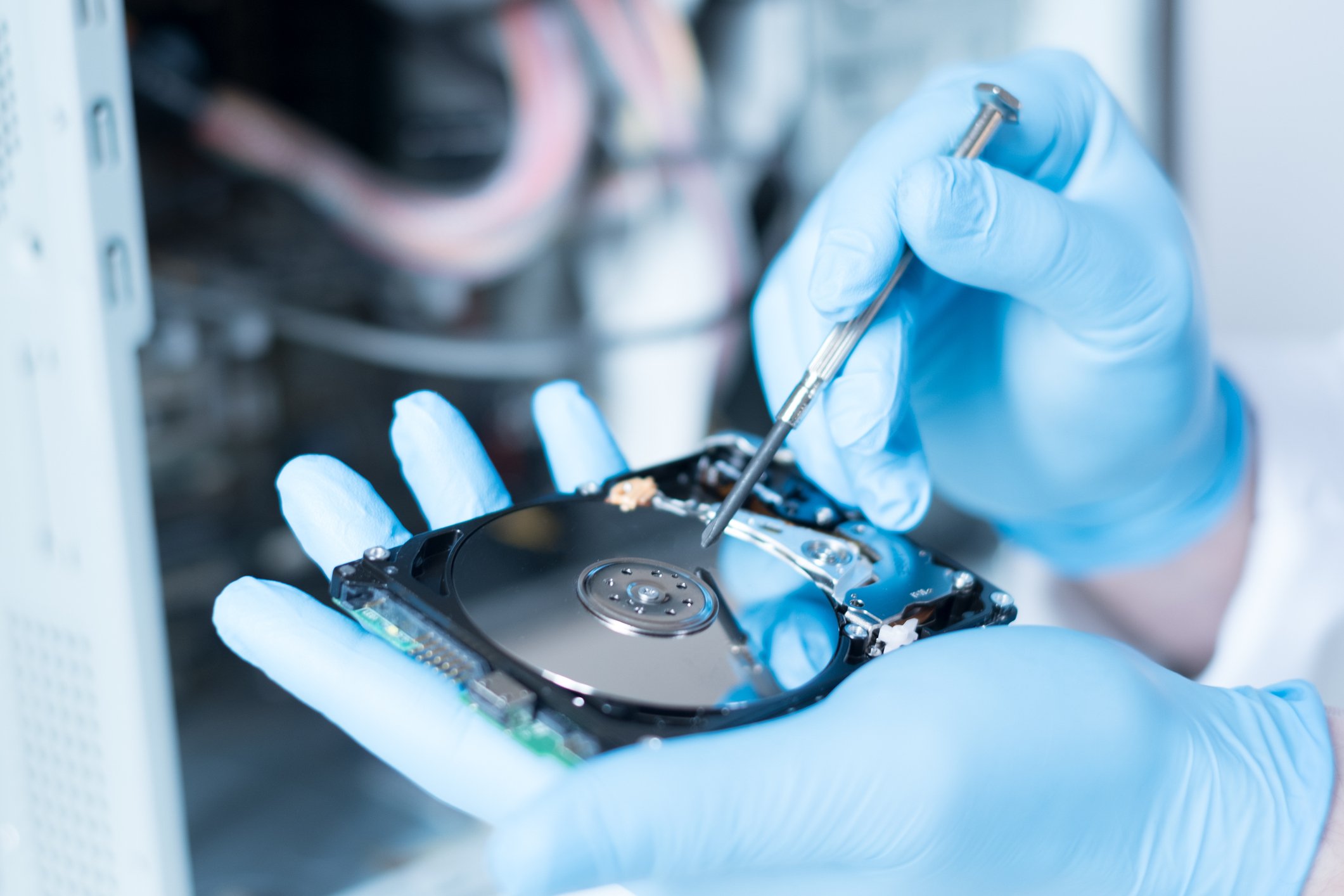
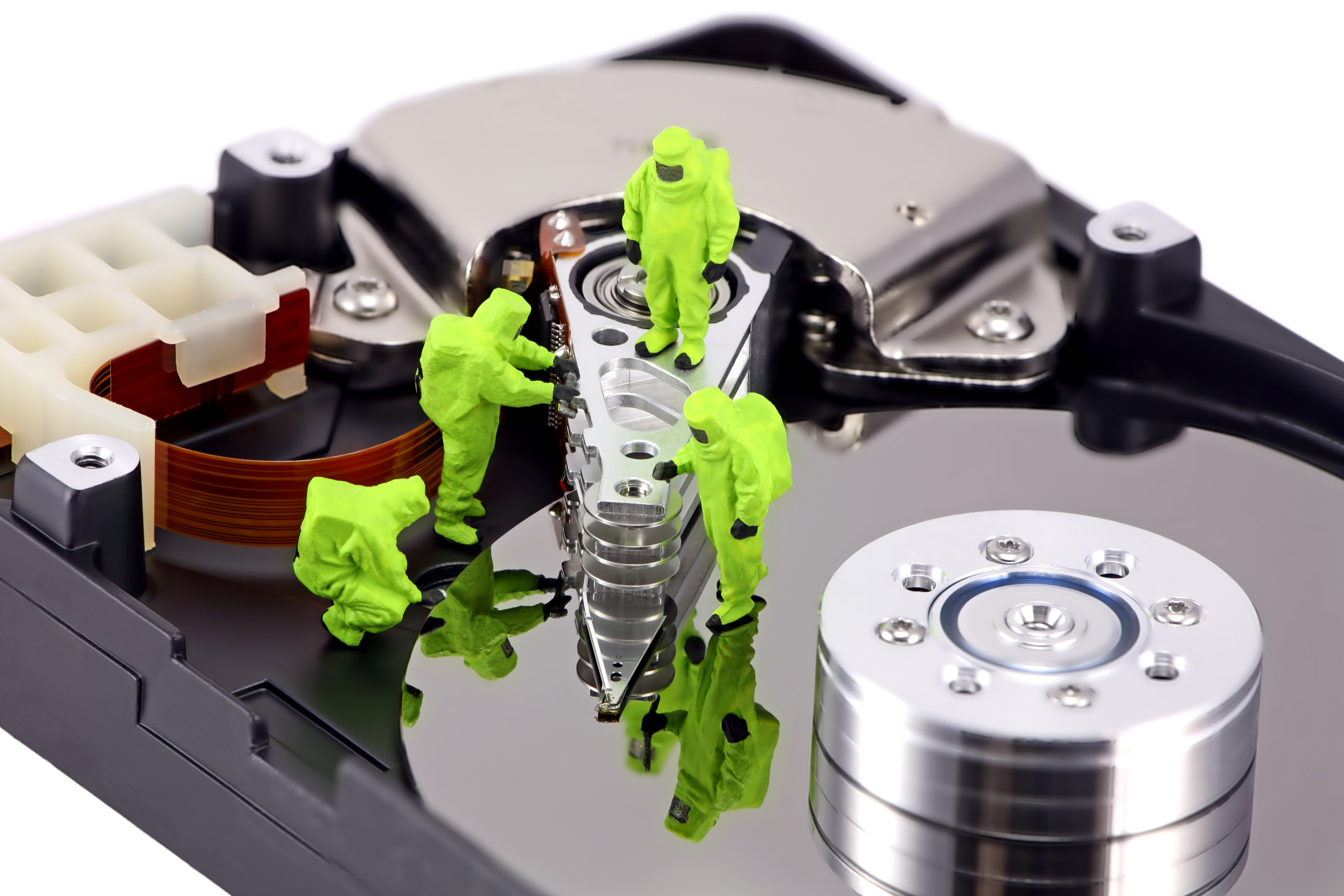
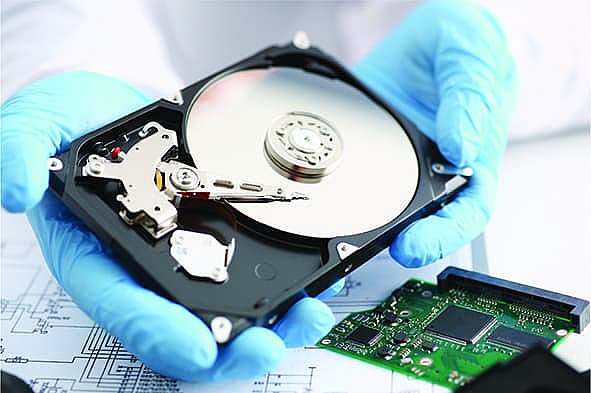
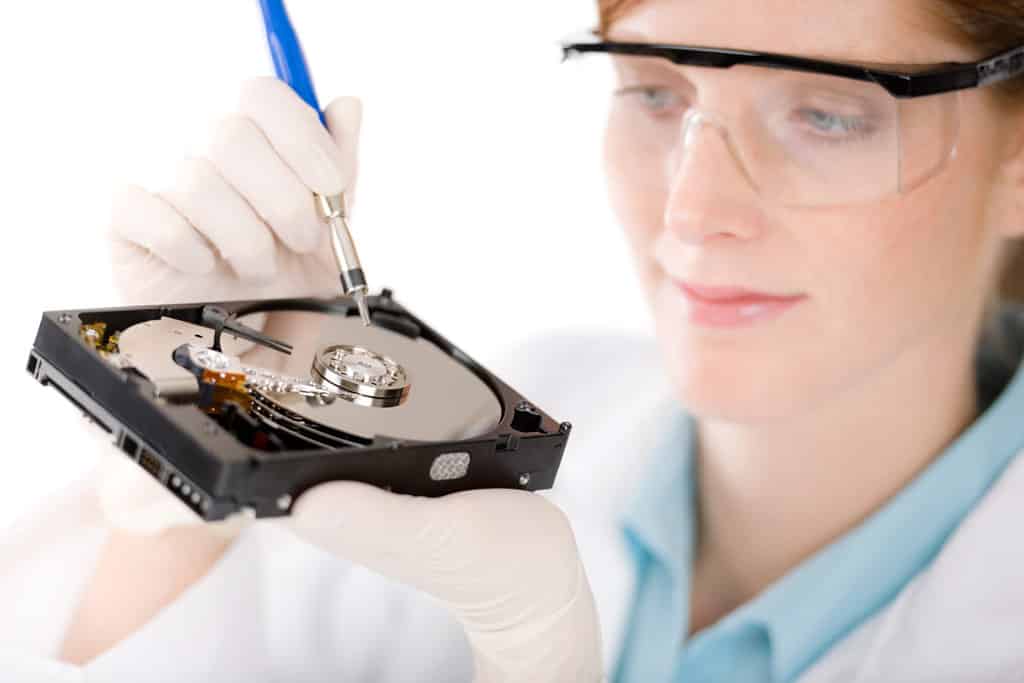
- Cleanroom environments to safely open and repair drives
- Specialized hardware for imaging and extracting data from damaged media
- Expertise in firmware repair and head replacement
- Support for RAID systems, SSDs, flash drives, and more
Most services begin with an evaluation phase, followed by a quote. Reputable providers often follow a no recovery, no fee policy, and some even offer emergency 24-hour recovery options.
Maximizing Recovery Success
To improve your chances of retrieving lost data:
- Stop using the affected drive immediately. Continued use may overwrite recoverable files or worsen physical damage.
- Avoid quick-formatting the drive. Even if you accidentally formatted it, the data may still be recoverable—unless new data has been written over it.
- Don’t attempt physical repairs yourself. Opening a hard drive outside of a certified cleanroom can introduce dust and debris that permanently damages the platters.
Final Thoughts
Hard drive data loss can be devastating, but in many cases, recovery is possible—especially if you act quickly and use the right tools or professionals.
For logical errors and accidental deletions, trusted data recovery software can be a valuable first step. However, if you suspect hardware issues, don’t risk permanent loss. Contact a certified data recovery expert who can safely extract your files using advanced techniques.
Prevention is always better than cure—so once your data is restored, invest in reliable backup strategies to avoid future headaches.