
When your hard drive begins to show signs of failure—such as throwing error messages or becoming unresponsive—it can be a stressful situation. The question that likely comes to mind is, “Can it be repaired?” Fortunately, depending on the nature of the failure, there are steps you can take to recover data and address issues like bad sectors, all without losing valuable files.
This article will guide you through the process of recovering data from a damaged hard drive and repairing bad sectors, whether you’re using Windows 10/8/7 or Linux.
Understanding Bad Sectors on a Hard Drive
Bad sectors are portions of a hard drive’s storage that can no longer be read or written to effectively. These sectors can be caused by several factors:
- Software errors: This could result from file system corruption, improper shutdowns, or a sudden power outage.
- Physical damage: This may occur due to a mechanical issue with the drive, such as a damaged head or platter, or from physical impacts like dropping the drive.
Bad sectors can prevent data from being accessed or written in certain areas of your hard drive, but not necessarily affect the entire drive. In some cases, you can repair bad sectors, while in other cases, the data stored in those sectors may be lost. However, the rest of the drive may still be functional, and your other data might be intact.
Steps to Recover Data from a Damaged Hard Drive
1. Backup Your Data Immediately
If your hard drive is starting to fail or has bad sectors, your first priority should be to back up your data. If the drive is still accessible, copy important files to another drive, cloud storage, or external device as soon as possible.
If the drive is not accessible via normal means, you may need to use specialized data recovery tools or software.
2. Use Data Recovery Software
In cases of logical failures or bad sectors caused by software errors, data recovery software can help recover your files. Some of the most popular tools include:
- Recuva: This is a free and easy-to-use tool for recovering files from damaged drives. It works well for accidentally deleted files, formatted drives, and damaged file systems.
- EaseUS Data Recovery Wizard: EaseUS is a user-friendly data recovery tool that offers both free and paid versions, depending on your needs. It can recover data from hard drives, SSDs, USB drives, and memory cards.
- TestDisk: This free, open-source tool is great for recovering lost partitions or fixing partition tables. It’s especially useful for dealing with logical corruption or bad sectors related to file system errors.
How to Use Data Recovery Software:
- Install the recovery software on a different device if the affected drive is inaccessible.
- Connect the damaged hard drive to the computer via a USB adapter or as a secondary internal drive.
- Launch the recovery software and scan the drive for recoverable files.
- Follow the software’s prompts to restore your files to a safe location (not on the same damaged drive).
3. Check the Drive for Bad Sectors
If the issue is related to bad sectors, many operating systems include built-in tools to check and repair them. Here’s how to use these tools:
For Windows:
- Open File Explorer and navigate to “This PC.”
- Right-click on the affected hard drive and select Properties.
- Under the Tools tab, click Check in the “Error checking” section.
- Choose Scan and Repair Drive if prompted.
- Allow Windows to scan the drive for bad sectors and automatically fix any errors it finds.
You can also use chkdsk, a command-line tool that checks and repairs file system errors, including bad sectors:
- Open Command Prompt as Administrator.
- Type
chkdsk X: /f /r(replace “X” with the drive letter of the damaged hard drive). - Press Enter and allow the tool to run. The “/f” flag attempts to fix errors, and the “/r” flag locates and repairs bad sectors.
For macOS:
- Open Disk Utility from the Applications > Utilities folder.
- Select the damaged drive and click First Aid.
- Click Run to check and repair errors, including bad sectors.
For Linux:
- Open a terminal window.
- Use the fsck command to check and repair the file system:
sudo fsck /dev/sdX(replace “X” with the actual drive identifier). - Allow fsck to scan the drive and attempt to fix any bad sectors.
4. If Physical Damage is Suspected, Seek Professional Help
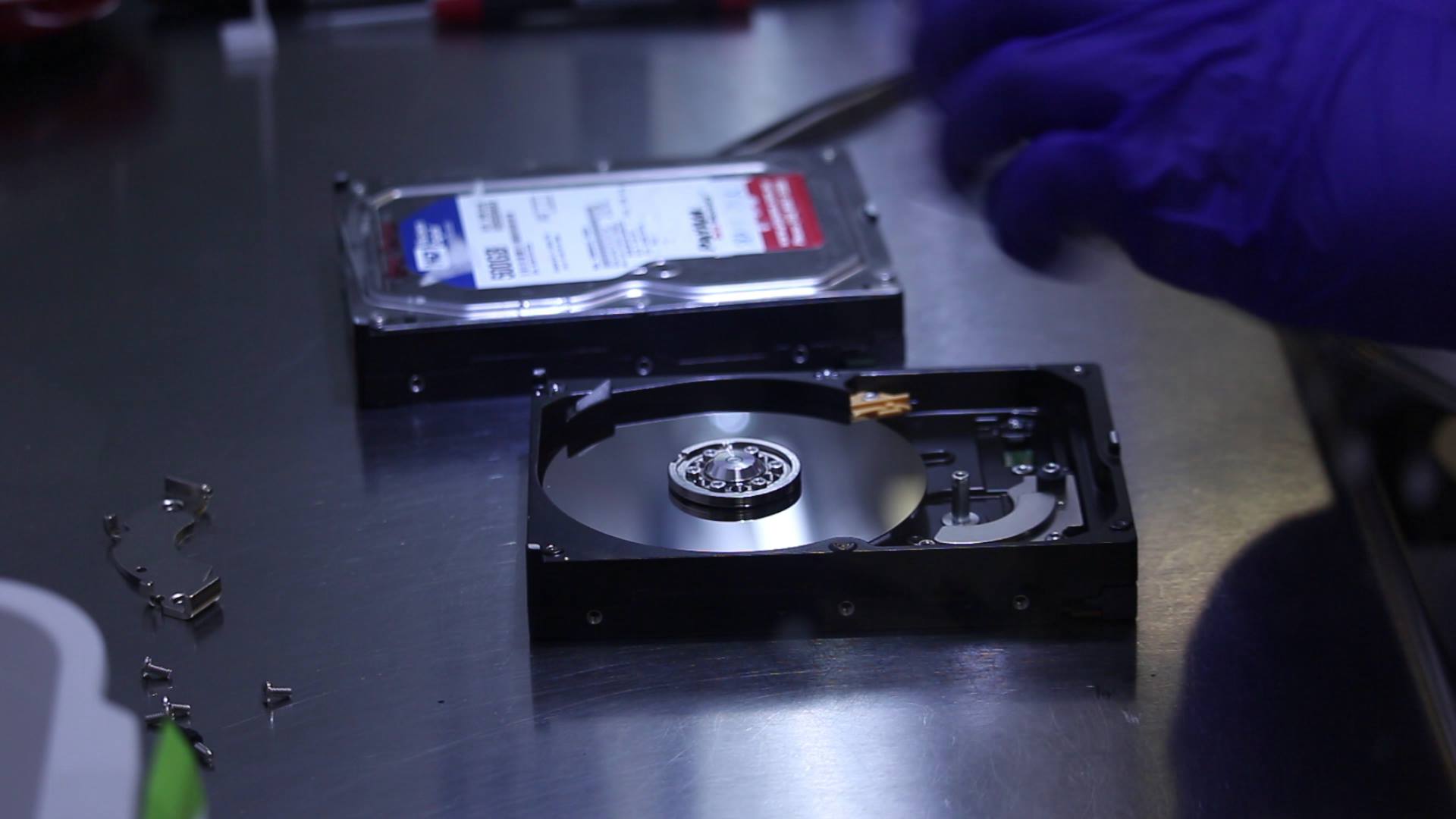
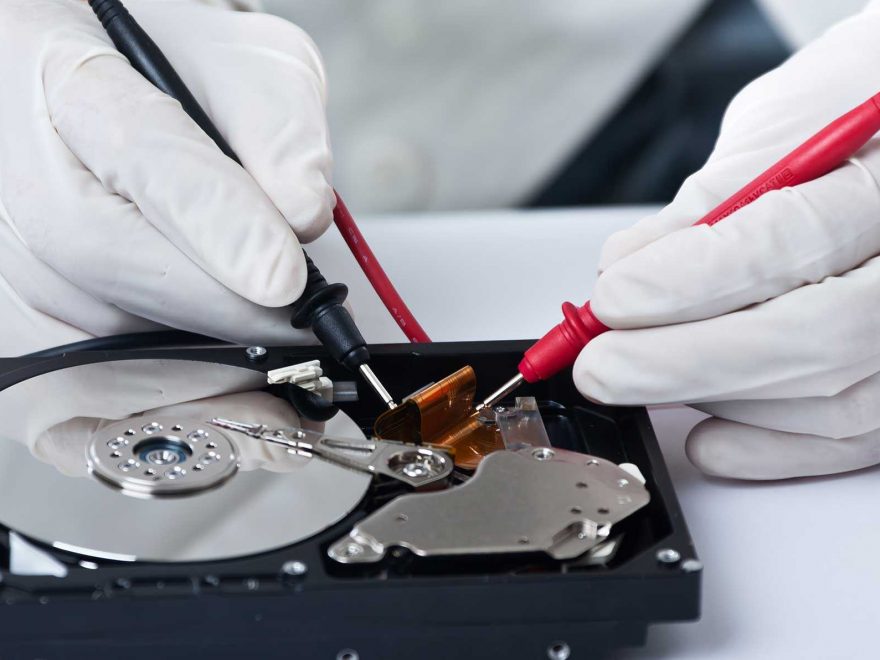
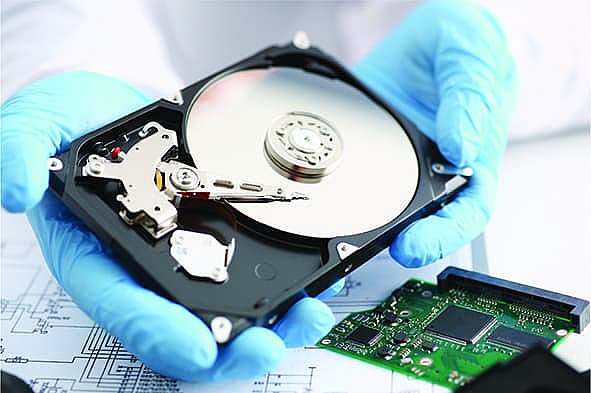
If the hard drive is physically damaged (such as clicking noises, overheating, or failure to spin), attempting DIY methods may worsen the situation. In these cases, professional data recovery services are recommended. These experts have specialized equipment and clean-room environments that are necessary for opening and repairing physically damaged drives.
Some signs that your hard drive has physical damage include:
- Unusual sounds like clicking, grinding, or beeping.
- The drive is not recognized by your system or BIOS.
- The drive overheats and becomes too hot to touch.
Preventing Future Data Loss
While recovering data from a damaged hard drive is possible, it’s always better to avoid such situations. Here are some best practices to help you protect your data:
- Regular Backups: Always back up important files regularly to external storage or cloud services.
- Use Reliable Hardware: Invest in high-quality hard drives from reputable manufacturers.
- Handle with Care: Avoid physical impacts on your drives. Keep them in a safe, stable location.
- Monitor Drive Health: Use tools like CrystalDiskInfo to monitor your drive’s health and get early warnings of potential failures.
Conclusion
A damaged hard drive doesn’t always mean that your data is lost forever. With the right tools and techniques, you can recover files from bad sectors and logical failures. Whether you use built-in operating system tools, third-party recovery software, or seek professional help for physical damage, acting quickly and backing up your data are crucial steps in ensuring that you don’t lose valuable information.
By following these steps, you can increase your chances of recovering data from a damaged hard drive and minimize the impact of future drive failures.