
Losing data from a hard drive—whether due to accidental deletion, corruption, or drive failure—can be an extremely stressful experience. Whether it’s irreplaceable family photos, important work documents, or your entire music collection, the sense of loss can be overwhelming.
But the good news is: data loss does not always mean permanent loss.
This guide explores why data loss happens, what you can do immediately after it occurs, and how to recover deleted files from a hard drive safely—plus some critical preventive tips for the future.
Why Data Loss Happens
Before diving into recovery methods, it’s important to understand how data loss occurs. There are two main categories:
1. Logical Failures
These involve non-physical issues with the hard drive. The device itself is still intact, but the data becomes inaccessible due to:
- Accidental deletion
- Formatting the drive by mistake
- Corrupt file systems
- Malware or ransomware attacks
- Software glitches
- Improper system shutdowns
In these cases, the data may still exist on the drive but is no longer indexed or readable by the operating system.
2. Physical Failures
This involves actual damage to the hard drive’s components, such as:
- A crashed or clicking hard disk
- Failed read/write heads
- Damaged platters
- Burned-out circuit boards
- Water or fire damage
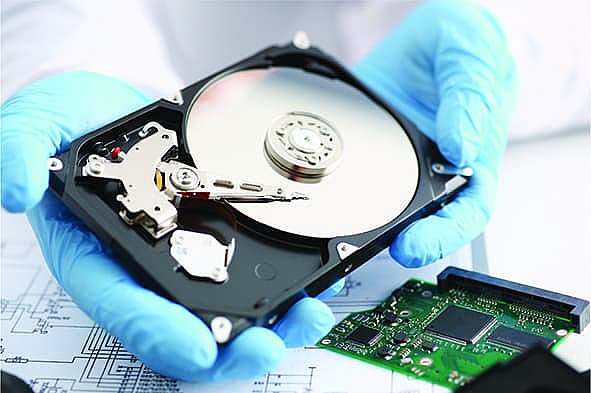
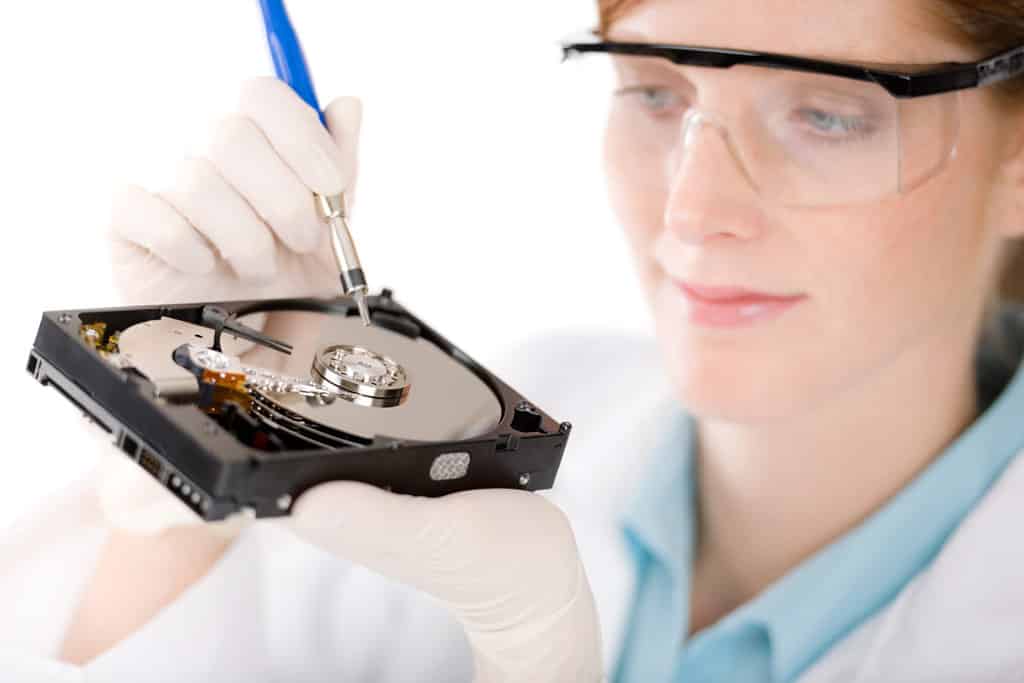
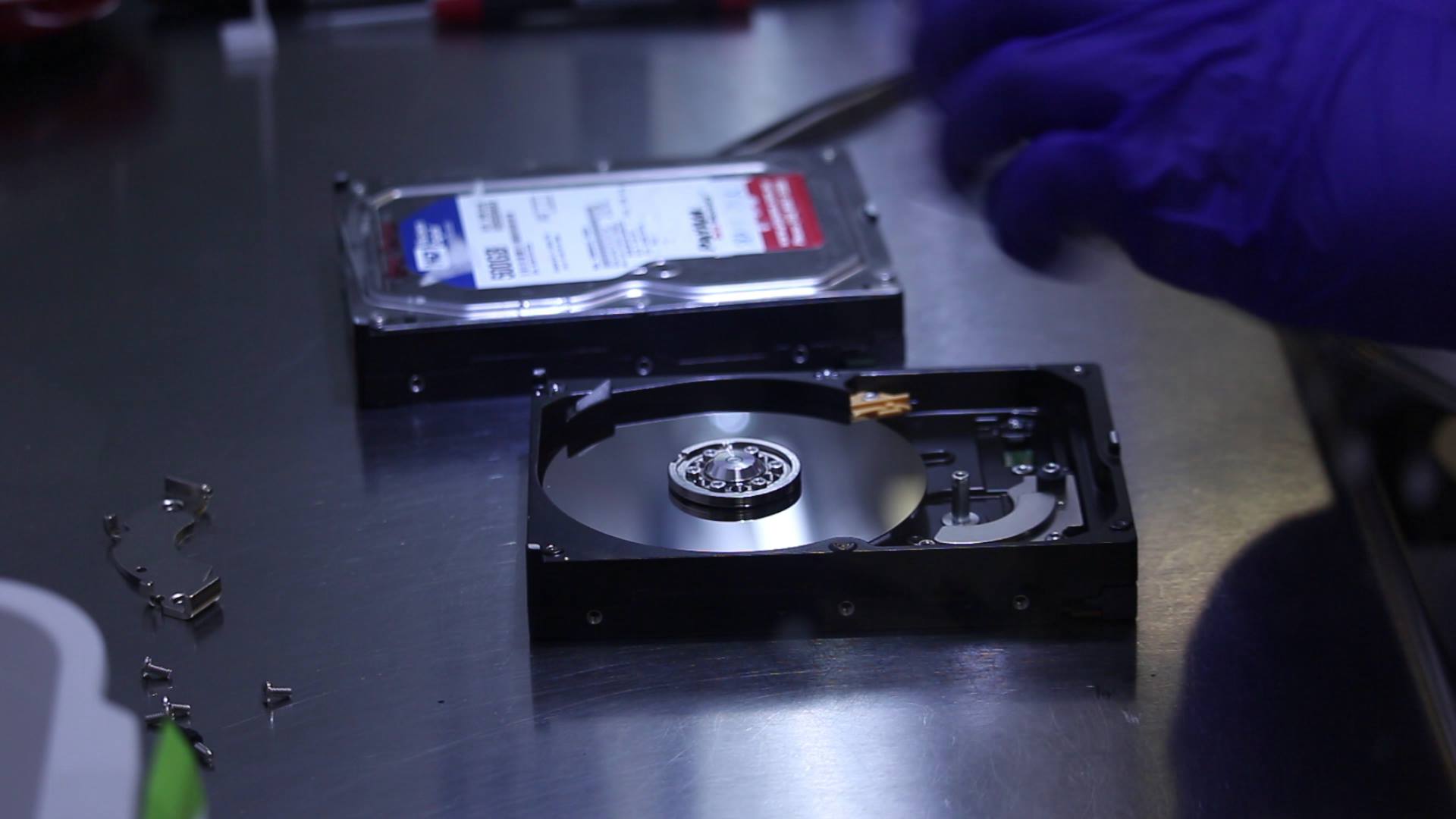
With physical damage, DIY recovery is strongly discouraged. Attempting to open the drive or use general software could worsen the damage. In these cases, only a professional data recovery lab with cleanroom environments and specialized tools can help.
What Happens When You Delete a File?
When a file is deleted on your computer—either by accident or intentionally—it doesn’t disappear immediately.
Instead, the operating system simply marks the space it occupied on the disk as available. The file content still exists until new data is written over it. This is why it’s often possible to recover deleted files if you act quickly and carefully.
What To Do Immediately After Data Loss
Your first few actions can determine whether your data will be recoverable.
✅ DO:
- Stop using the affected drive immediately.
- Unplug external drives if that’s where data was lost.
- Use another computer to download and install recovery tools.
- Back up remaining files that are still accessible, if possible.
❌ DON’T:
- Install new programs on the same drive.
- Save new files or perform system updates.
- Attempt physical repairs on your own.
- Format the drive unless absolutely necessary.
Even one simple action—like saving a file or running an update—can overwrite the deleted data, making it permanently unrecoverable.
How to Recover Deleted Files (for Logical Failures)
If your hard drive is still functioning but files have been deleted or become inaccessible, recovery software can help.
Step 1: Choose the Right Recovery Software
Some of the best tools on the market include:
- Recuva – Great for beginners. Recovers photos, documents, and other files.
- EaseUS Data Recovery Wizard – Intuitive UI and works with formatted drives or lost partitions.
- Disk Drill – Offers quick and deep scan options for internal/external drives.
- PhotoRec – Advanced, open-source recovery tool (also good for camera memory cards).
- R-Studio – For professionals needing extensive recovery capabilities.
🛑 Important: Always install the recovery software on a separate drive or USB stick, not the one you’re recovering from.
Step 2: Scan the Drive
Once you launch the software:
- Select the affected drive.
- Start a deep scan to uncover all recoverable files.
- Be patient—this process can take hours, depending on the drive size.
Step 3: Preview and Restore Files
Most recovery software lets you preview files (especially images and documents) before restoring them. Choose what you need, and save recovered files to a separate drive, not the original one.
When to Call a Professional
If your data loss is due to physical damage—such as clicking sounds, drive not recognized, or liquid damage—DIY recovery is not recommended.
Professional data recovery companies operate in dust-free cleanrooms and use high-end equipment to replace damaged parts and retrieve data safely.
What they offer:
- Diagnosis and evaluation
- Bit-by-bit cloning of damaged drives
- Specialized tools to access firmware and internal disk structures
- Confidential and secure handling of sensitive files
Yes, this option is more expensive, but in cases of critical data or irreplaceable files, it’s often worth it.
Tips to Prevent Future Data Loss
Prevention is always better (and cheaper) than recovery. Here are practical steps you can take to minimize future risks:
1. Enable Automatic Backups
Use built-in tools like Time Machine (Mac) or File History (Windows), or invest in cloud services like Google Drive, Dropbox, or iCloud.
2. Use External Backup Drives
Set up a regular backup routine using external drives. Follow the 3-2-1 backup rule:
3 copies of data, on 2 different types of storage, with 1 copy off-site.
3. Install Antivirus Software
Malware can corrupt or encrypt files beyond recognition. A solid antivirus suite helps prevent that.
4. Keep 10–20% Storage Space Free
Hard drives need breathing room to operate efficiently. Filling a drive to capacity increases the risk of corruption and slows performance.
5. Avoid DIY Repairs on Damaged Drives
If a hard drive has physical issues, don’t take it apart. You could make the situation unrecoverable. Let professionals handle it.
Final Thoughts
Losing files can feel devastating—but recovery is often possible with the right approach. For logical errors or accidental deletion, recovery software offers a great first step. For physical failures, professional services provide the highest chance of success.
The key takeaway? Act fast, avoid overwriting the drive, and always maintain a backup plan.
If you’re unsure about the cause of your data loss, it’s always safer to consult with a data recovery specialist before attempting anything.