
Losing a critical document can feel devastating—especially when you’ve poured hours of work into it. Whether it’s a Word document, spreadsheet, PDF, or another essential file, accidental deletion or software crashes can lead to serious setbacks. Fortunately, modern data recovery tools offer hope—even when your document appears to be lost forever.
In this in-depth guide, we’ll explore:
- What happens when a file is deleted
- Why files can often be recovered
- The types of data loss scenarios
- Step-by-step use of data recovery software
- Tips for maximizing recovery success
- When to turn to a professional
Understanding File Deletion: It’s Not Gone (Yet)
When you delete a file, your operating system doesn’t instantly erase the content. Instead, it simply removes the file pointer—the reference to where the data is stored on the disk. The space that file occupied is marked as “free,” and the system waits to overwrite it with new data.
As long as that space hasn’t been overwritten, data recovery software can scan the unallocated sectors and retrieve your lost documents.
Key Point: The sooner you stop using the device and begin recovery, the higher your chances of success.
Common Scenarios for Document Loss
Understanding how and why data was lost is key to choosing the right recovery method. Here are some of the most frequent causes:
1. Accidental Deletion
This is the most common reason. The document is manually deleted and bypasses the recycle bin or is cleared from it.
2. Unsaved Documents
Word processors sometimes crash unexpectedly. If AutoSave is disabled or wasn’t triggered, you may lose progress.
3. Formatting Errors
Formatting a drive or partition—intentionally or not—can erase all stored files. In most cases, the file structure is wiped, not the actual data.
4. Malware or Ransomware
Viruses can corrupt or encrypt important files. Some recovery tools can help recover uninfected versions of files or restore previous versions.
5. Drive Corruption or System Crashes
Sudden shutdowns or corrupted sectors may make files inaccessible, even though they still reside on the drive.
Step-by-Step: How to Use Data Recovery Software
When you’re dealing with lost documents, time is of the essence. Here’s how to proceed:
Step 1: Stop Writing to the Drive
Do not create new files, install apps, or save anything on the drive that held the deleted file. This prevents overwriting.
Step 2: Choose the Right Data Recovery Tool
There are many tools available, both free and premium. Top choices include:
- Recuva (Windows)
- Disk Drill (Windows/macOS)
- EaseUS Data Recovery Wizard
- Stellar Data Recovery
- PhotoRec/TestDisk (Advanced, open-source)
Pro Tip: If you’re not tech-savvy or your document is mission-critical, stop here and consult a professional recovery service.
Step 3: Install and Scan
- Install the recovery tool on a different drive from the one you’re recovering from.
- Launch the software and select the drive or folder to scan.
- Opt for a deep scan to locate more thoroughly deleted or corrupted files.
Step 4: Preview and Recover
Most tools will show a preview of recoverable files. From here:
- Select the desired file(s)
- Save them to a different drive (e.g., USB, external hard drive)
Maximizing Success: What You Need to Know
Recovery isn’t guaranteed—but these tips can drastically improve your chances:
- Act Fast: Recovery chances decrease with time and continued device use.
- Use Quality Tools: Free tools are great, but paid versions often recover more data and provide better support.
- Scan the Right Drive: Be certain where the file was saved. Scanning the wrong location wastes time and may reduce success.
- Don’t Attempt DIY Repairs on Physically Damaged Drives: If your drive is making clicking noises, won’t mount, or has been dropped—turn to a lab-based recovery service immediately.
When to Call a Data Recovery Professional
There are cases where software tools just aren’t enough. Seek professional recovery services if:
- Your drive was physically damaged (dropped, burned, water exposure)
- It’s an SSD with TRIM enabled (instant deletion occurs)
- The recovery software shows corrupted files that won’t open
- You’ve already tried multiple tools without success
- The lost data is extremely valuable, sensitive, or regulated (legal, medical, financial, etc.)
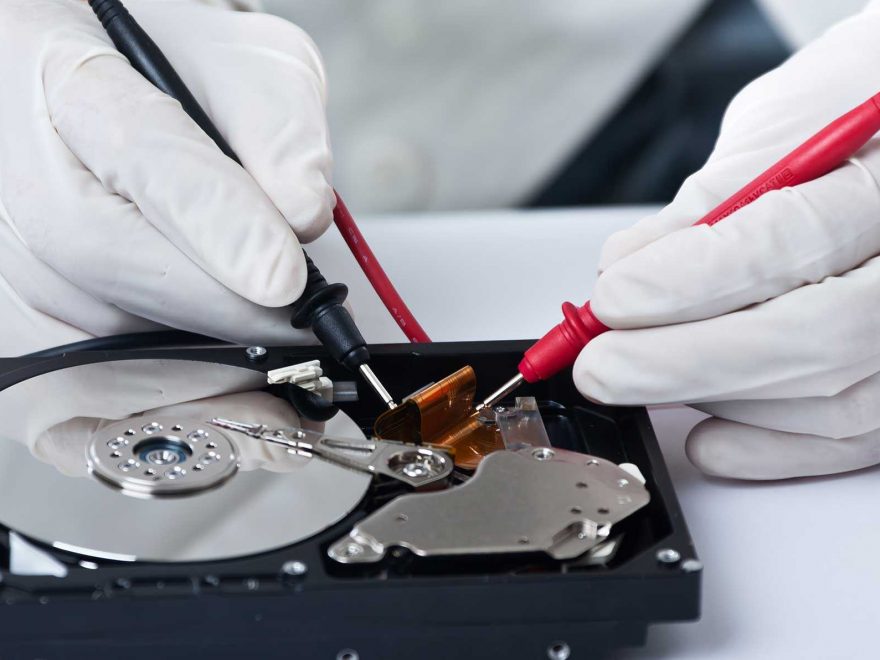
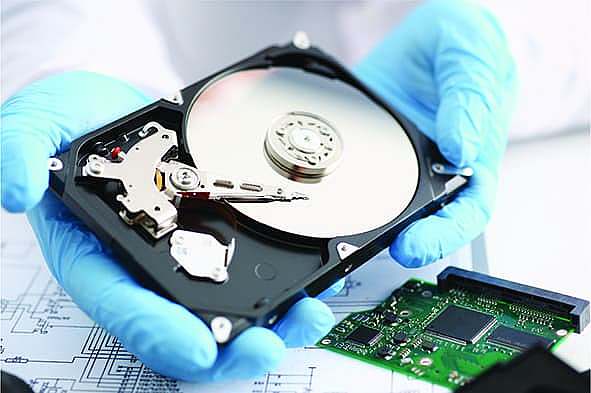
Professional labs use cleanrooms, forensic techniques, and custom hardware to recover data from even the most severely damaged drives.
Data Recovery Is Possible—But Prevention Is Better
Data recovery tools are powerful, but they’re not infallible. The best solution to document loss is prevention.
Recommended Best Practices:
- Enable AutoSave and AutoRecover in Microsoft Word
- Use cloud backups (Google Drive, OneDrive, Dropbox)
- Set up local backups using Time Machine (macOS) or File History (Windows)
- Regularly scan your computer for malware and drive errors
Final Thoughts
Losing a document doesn’t have to be the end. With the right tools and quick action, you can often recover what’s lost. Whether you accidentally deleted a Word file or suffered a system crash, data recovery software gives you a fighting chance.
Still stuck or dealing with a complex case? Don’t risk permanent loss. Contact our team of data recovery professionals for expert help.