

Having your external hard drive fail unexpectedly can be a nightmare, especially if it holds important files, images, or documents that you need. Whether it’s due to physical damage, a virus, or file corruption, data recovery can seem like an overwhelming task. However, it is possible to recover your data in many cases, depending on the type and severity of the failure.
In this post, we’ll walk through the different types of hard drive failures, the recovery methods you can try, and when it’s best to seek professional help.
Understanding the Anatomy of a Hard Drive Failure
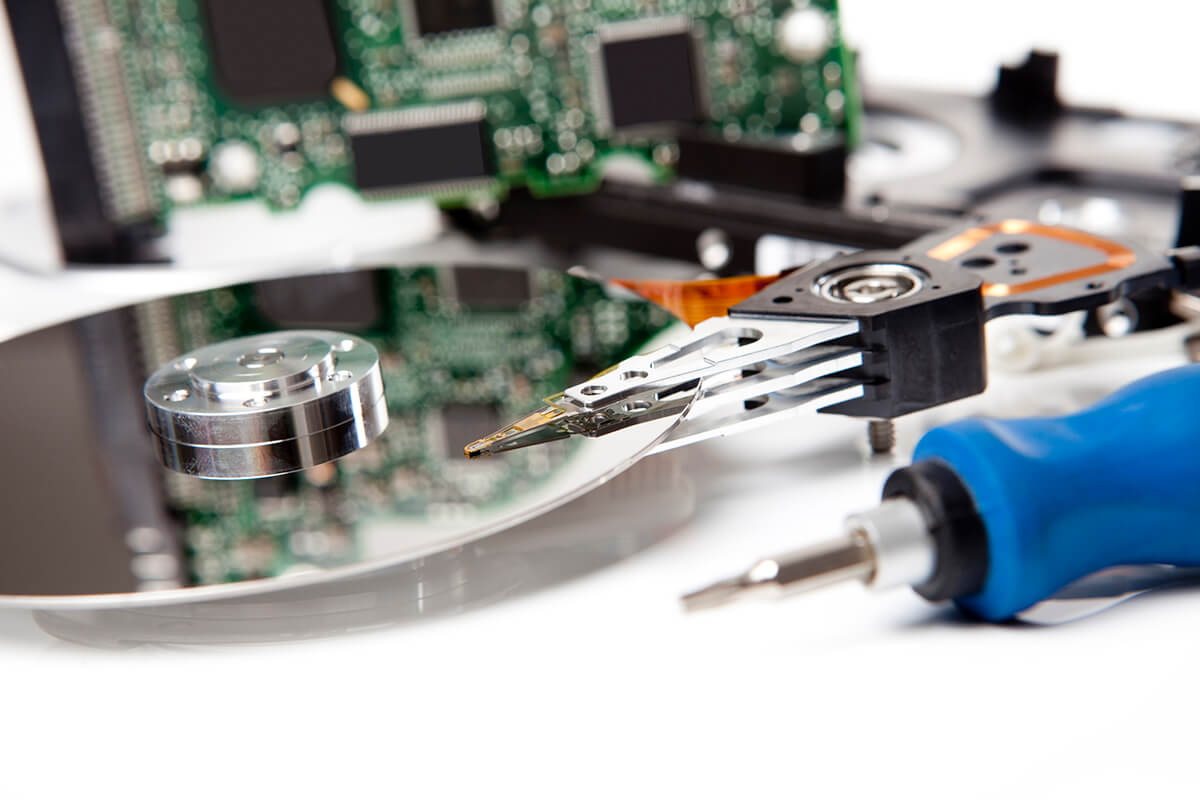
Before diving into recovery methods, it’s essential to understand how a hard drive works. External hard drives, like internal drives, rely on rotating platters where data is stored. These platters are sensitive to magnetic stimulation, and the drive’s read/write heads move across them to access the data.
Some common causes of external hard drive failures include:
- Physical damage: Dropping the hard drive or exposing it to moisture can damage the platters or the internal mechanics.
- Shock or impact: A sudden drop or jolt can cause the internal parts of the drive to malfunction.
- Corruption or bad sectors: Over time, your hard drive may accumulate bad sectors or experience file system corruption.
- Viruses or malware: Malicious software can corrupt files and even prevent the hard drive from functioning properly.
When these issues occur, the data may become inaccessible. Depending on the severity of the problem, you might still be able to recover the files, or the damage may be irreparable.
Types of External Hard Drive Failures
External hard drives fail in different ways, and the recovery process largely depends on the type of failure you’re facing. Here are the most common types of hard drive failures:
- Mechanical Failures (Physical Damage)
- Symptoms: Unusual clicking or grinding sounds, failure to spin up, or the drive not being recognized by your computer.
- Cause: Mechanical failure usually occurs when internal components (platters or read/write heads) are physically damaged due to shock or impact.
- Recovery: In these cases, data recovery is challenging and typically requires a professional service. If the platters are severely damaged (e.g., shattered glass platters), recovery may be impossible.
- Electrical Failures
- Symptoms: The hard drive fails to power on or responds erratically.
- Cause: Electrical failures can occur due to issues with the power supply or the drive’s internal circuitry.
- Recovery: Sometimes, the issue can be fixed by replacing the faulty power supply or circuit board. However, if the damage is too extensive, professional recovery services will be required.
- Logical Failures (Corruption or File System Issues)
- Symptoms: The drive is recognized by the computer, but you cannot access files. The drive may show up as unformatted or may have strange error messages.
- Cause: Logical failures happen when the file system becomes corrupted or when files are accidentally deleted.
- Recovery: You can often recover data from a logically failed hard drive using recovery software, such as Recuva, EaseUS Data Recovery, or Stellar Data Recovery. These tools can scan the drive and recover files without causing further damage.
- Bad Sectors
- Symptoms: Files may become corrupted or inaccessible. The computer may slow down significantly when trying to read from or write to the hard drive.
- Cause: Bad sectors are areas on the drive where data cannot be read or written. This can happen due to age, wear and tear, or exposure to physical damage.
- Recovery: If there are just a few bad sectors, they can be repaired using disk repair tools like CHKDSK or Disk Utility. However, if bad sectors are widespread, it may be necessary to copy your data to a new drive before the failure worsens.
Steps to Recover Data From a Failed External Hard Drive
Here’s a step-by-step guide to try and recover data from your failed external hard drive:
Step 1: Check the Drive’s Physical Condition
If you suspect physical damage, carefully inspect the drive for signs of impact, scratches, or any unusual noises (e.g., clicking, grinding). If the drive is physically damaged, DO NOT attempt to open it yourself, as this could cause further damage. In such cases, seeking professional data recovery services is essential.
Step 2: Try a Different USB Cable or Port
Sometimes the issue isn’t with the drive itself but with the cable or the USB port. Try using a different cable or plugging the drive into a different computer or USB port. If the drive is still not recognized, move to the next step.
Step 3: Check the Drive’s Recognition
Connect the drive to your computer and check whether the drive is recognized in the file explorer (for Windows) or disk utility (for Mac). If the drive is listed but you can’t access it, there may be a logical or file system issue.
Step 4: Use Data Recovery Software
If the drive is recognized but the files are inaccessible, you can try data recovery software. Here are some popular options:
- Recuva (Windows): A free tool that can recover deleted files, even from formatted or corrupted drives.
- EaseUS Data Recovery Wizard (Windows & Mac): A user-friendly software that can recover files from various storage devices, including external hard drives.
- Stellar Data Recovery (Windows & Mac): A comprehensive tool that can handle a wide range of data loss scenarios, including corrupted, formatted, or inaccessible drives.
- Disk Drill (Windows & Mac): This software provides advanced data recovery features for damaged hard drives and external drives.
These programs typically allow you to scan your hard drive for recoverable files and save them to a different location (such as another hard drive or cloud storage).
Step 5: Perform Disk Repair (If Applicable)
If your drive is not recognized due to file system corruption, you can attempt to repair it using built-in utilities like:
- CHKDSK (Windows): Run the chkdsk command in Command Prompt to check for errors and repair them. This tool can fix logical errors on the disk.
- Disk Utility (Mac): Use Disk Utility to verify and repair the disk. It can fix minor file system issues and bad sectors.
If the repair utility finds errors and successfully repairs them, you may be able to access your files again.
Step 6: Seek Professional Help
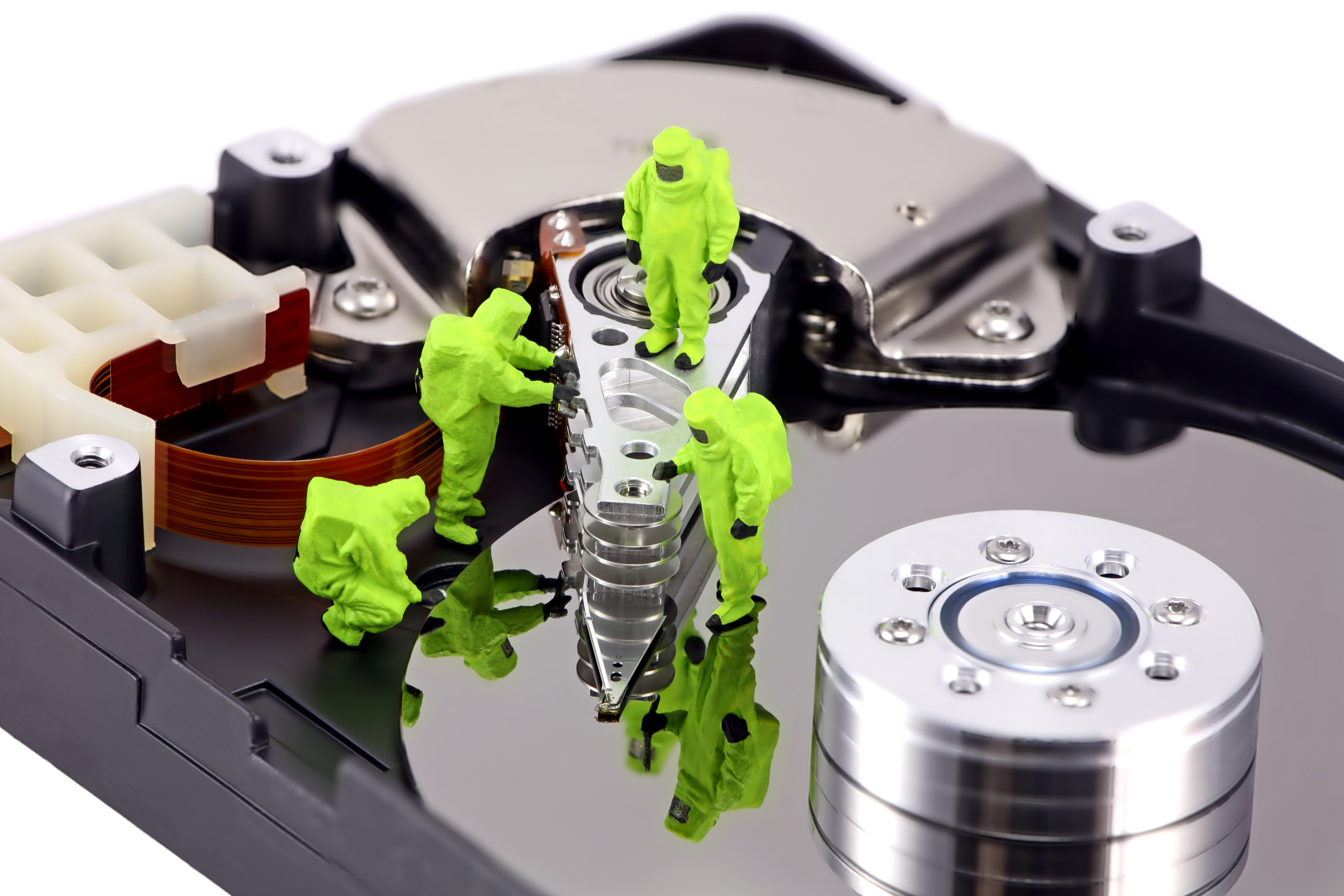
If none of the above methods work, or if the drive is physically damaged, your next step should be to contact a professional data recovery service. These specialists have access to advanced tools and equipment (such as clean rooms) to recover data from physically damaged drives.
Preventive Measures to Avoid Future Data Loss
Once you’ve recovered your data (or if you’re able to recover it in the future), it’s important to take preventive measures to avoid future data loss:
- Backup Regularly: Always maintain at least two backup copies of your data—one on an external hard drive and another in the cloud.
- Use RAID Arrays: For critical data, consider using a RAID setup for redundancy, so if one drive fails, your data remains intact.
- Avoid Physical Damage: Handle your external hard drive with care, and avoid dropping it or exposing it to extreme conditions like heat or moisture.
- Run Disk Health Checks: Regularly check the health of your hard drive using tools like CrystalDiskInfo (for Windows) or DriveDx (for Mac). These tools can monitor your drive’s health and alert you to potential issues before they become critical.
Conclusion
Experiencing a failed external hard drive can be stressful, but the possibility of recovering your lost data is often high—depending on the cause of the failure. If the issue is physical, professional data recovery services are your best bet. However, for logical issues or file system corruption, you can often recover your files using specialized recovery software.
Moving forward, ensure that you maintain a solid backup strategy to minimize the risk of data loss in the future. Regular backups and careful handling of your external hard drive will go a long way in safeguarding your valuable data.